Create a leave request
Click Create Leave Request on Leave Requests, or use the direct link to the request form.
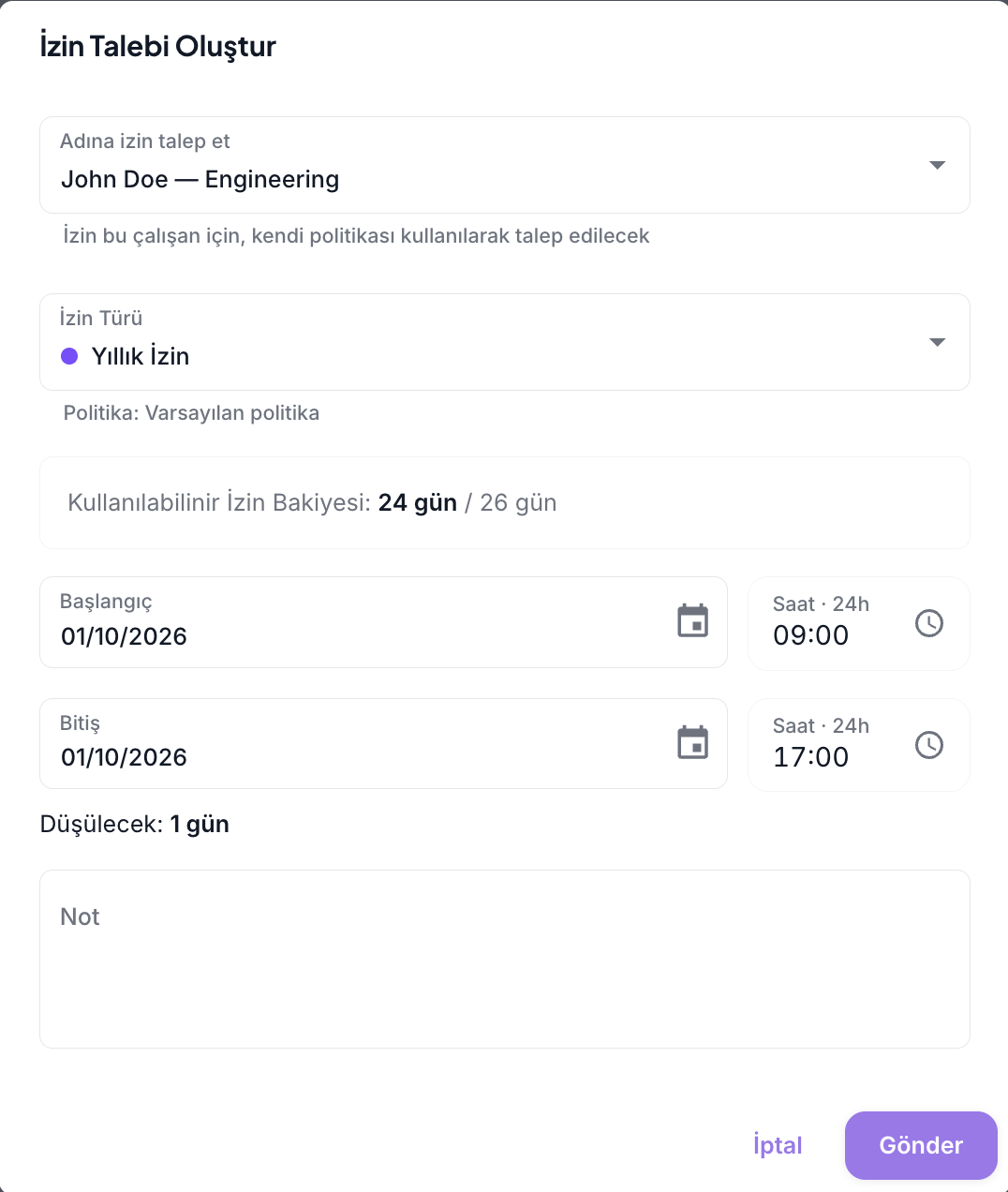
- If permitted, select the employee for the request. Ordinary users request leave for themselves.
- Select a Leave Type. The list comes from the selected employee's applicable leave policy.
- Check the displayed available balance.
- Select Start and End dates. If the type allows hourly requests, you can also select times for a same-day request. Otherwise the time fields are hidden and only full-day requests are possible.
- Enter a Note if required. Types with Note Required cannot be submitted without one.
- Check the To be deducted duration and click Submit. Review the duration again in the confirmation dialog and confirm.
Hours and days
For types with Allow Hourly Requests enabled, a same-day request is calculated in hours; a request spanning multiple days is calculated in days. Duration and balance are displayed in days/hours based on the organization's configured working hours per day.
Common issues
| What you see | What to check first |
|---|---|
| A new type is missing from the list | Confirm that the type is attached to the employee's applicable policy, that the policy is active, and that it applies to the employee. |
| Balance unknown | Balance data may not have loaded or the selected policy type may lack a balance record. Refresh the page; if it persists, ask an administrator to check the policy, entitlement, and API response. |
| Exceeds remaining balance | Check available and accrued leave and any negative-balance allowance. The server makes the final validation. |
| No time picker | Allow Hourly Requests is off for this leave type. Check its configuration. |
After submission, follow the request on Leave Requests.